18 July 2013

nload - Monitor your internet speed in the Terminal

102 comments

How to install nload in ubuntu
nload is a terminal based application for linux which monitors network traffic and bandwidth usage in real time. It monitors the in- and outgoing traffic using two graphs and provides additional info like the total amount of transferred data and min/max network usage.
It displays the total amount of data that has been transferred over a network device since the last reboot, the current bandwidth usage, and the minimum, maximum, and average bandwidth usage measured since it started.

How to Install nload

nload comes pre-installed with Ubuntu, so you can use it directly. If it is not installed on your system then, open terminal (Ctrl + Alt + t) and run the following command

$ sudo apt-get install nload
Read More...

11 July 2013

Linux MCQ Questions and Answers - Set 4

5 comments

linux Question and answer in linux
This is set 4 in the ongoing series of MCQ. Hope you have enjoyed the other parts of the series. Like other sets this set also contains some Linux questions with their answers.

1

In Linux which of following command do you use to know the purpose of a command?

which

whatis

what

purpose

Answer
Option B is correct, whatis display the purpose of a command.
$ whatis ls
ls (1) - list directory contents
LS (6) - display animations aimed to correct users who accident...
Read More...

28 June 2013

Basic Linux MCQ Questions for Beginners - Set 3

3 comments

linux Question and answer in linux
This is set 3 in the ongoing series of MCQ. Hope you enjoyed the first part and Second part of the series. Like first set and second set, this set also contain some basic Linux questions and answers for beginners.

1

Total no of run levels in a Linux system?

6

7

5

8

Answer
Total number of run level in Linux system is 7 i.e from 0 to 6.
0 = Halt
1 = Single User
2 = Multiuser without NFS
3 = Multiuser
4 = User defined
5 = Multiuser with X
6 = Reboot
Read More...

25 June 2013

Basic Linux MCQ Questions for Beginners- Set 2

4 comments

linux Question and answer in linux
This is set 2 in the series of MCQ. Hope you enjoyed the first part of the series. Like first set, this set also contain some basic Linux questions and answers for beginners.

1

Which of the following is not a valid login shell in Linux?

C shell

Net Shell

Bash Shell

Z shell

Answer
Net shell does not exist in Linux or it is not a valid login shell. You can check all the shell available in your system by typing following command
$ cat /etc/shells
Read More...

22 June 2013

Basic Linux MCQ Questions for Beginners - Set 1

45 comments

linux Question and answer in linux
This set contains questions which test your basic knowledge about Linux. It might be useful for the beginners who are just starting with Linux and want to test their knowledge.

1

Maximum how long can a Linux filename be?

128 bytes

255 bytes

32 bytes

64 bytes

Answer
In Linux filename length can be upto 255 bytes.
Read More...

07 June 2013

Ipcalc - Command line tool for calculating Subnets and other IP address related stuffs

10 comments

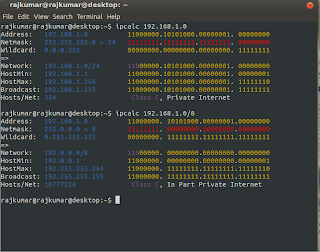
ipcalc in ubuntuWhen doing any moderate to advanced networking, you are likely to have to deal with subnetting. While some people have an ability to do the binary math in their head to figure out the correct subnet-mask, some may find it difficult to calculate, for them Ipcalc is a tool in Linux which help them to calculate no. of subnets, subnetting mask and other Ip addressing related stuffs.

Ipcalc takes an IP address and netmask and calculates the resulting broadcast, network, Cisco wildcard mask, and host range. By giving a second netmask, you can design subnets and supernets. It is also intended to be a teaching tool and presents the subnetting results as easy-to-understand binary values.

How to Install Ipcalc

To install Ipcalc in Ubuntu or debian based distros, open terminal ( Ctrl + Alt + t) and run the following command

$ sudo apt-get install ipcalc

How to use Ipcalc

1. Know everything about the network address

$ ipcalc 192.168.1.0
Address:   192.168.1.0          11000000.10101000.00000001. 00000000
Netmask:   255.255.255.0 = 24   11111111.11111111.11111111. 00000000
Wildcard:  0.0.0.255            00000000.00000000.00000000. 11111111
=>
Network:   192.168.1.0/24       11000000.10101000.00000001. 00000000
HostMin:   192.168.1.1          11000000.10101000.00000001. 00000001
HostMax:   192.168.1.254        11000000.10101000.00000001. 11111110
Broadcast: 192.168.1.255        11000000.10101000.00000001. 11111111
Hosts/Net: 254                   Class C, Private Internet
Read More...

11 May 2013

Monitor you CPU and HardDisk Temperature from Terminal in Ubuntu/Linux Mint

85 comments

How to check harddisk temperature in ubuntuToday's trick is about how to monitor your CPU and HardDisk Temperature from Command Line in Ubuntu/Linux Mint. hddtemp and acpi are the two utilities which are used to check HardDisk and CPU Temperature respectively.
Both hddtemp and acpi are small application and already present in Ubuntu repository, you need to install them before use. Lets see the installation and usage of hddtemp and acpi one by one.

About hddtemp

hddtemp utility let you know the temperature of your hard drive by reading Self-Monitoring Analysis and Reporting Technology (S.M.A.R.T.) information on drives that support this feature. Only modern hard drives have a temperature sensor. hddtemp supports reading S.M.A.R.T. information from SCSI drives too. hddtemp can work as simple command line tool or as a daemon.

How to install hddtemp

To install hddtemp in Ubuntu/Linux Mint, open terminal (Ctrl + Alt + t) and run the following command

$ sudo apt-get install hddtemp
Read More...